Skip to content
CHRG

Portal & EMS

The software everything runs through

The CHRG portal is not an add-on to the charger. It is where the value for the owner is created: access control, billing, power limiting and proof of what actually happened.

CHRG Portal

Billing, power limiting, access, and proof of what actually happened.

  • 01

    Billing without spreadsheets

    Every session lands in the database with kilowatt-hours, duration and a user identifier. The monthly statement builds itself — separately for residents, employees and hotel guests.

  • 02

    Energy management (EMS)

    Dynamic load balancing guards the grid connection. Twelve chargers on a supply that would carry three — without exceeding contracted power and without rebuilding the installation.

  • 03

    Card and app access

    RFID cards, guest codes, tenant limits. You grant and revoke access from a browser, not by walking out to the pedestal.

  • 04

    Live view

    The state of every point in real time: power, per-phase voltage, temperature, faults. You see a failure before the user calls.

What it looks like

Screenshots from a demo account. The same view you get after signing in.

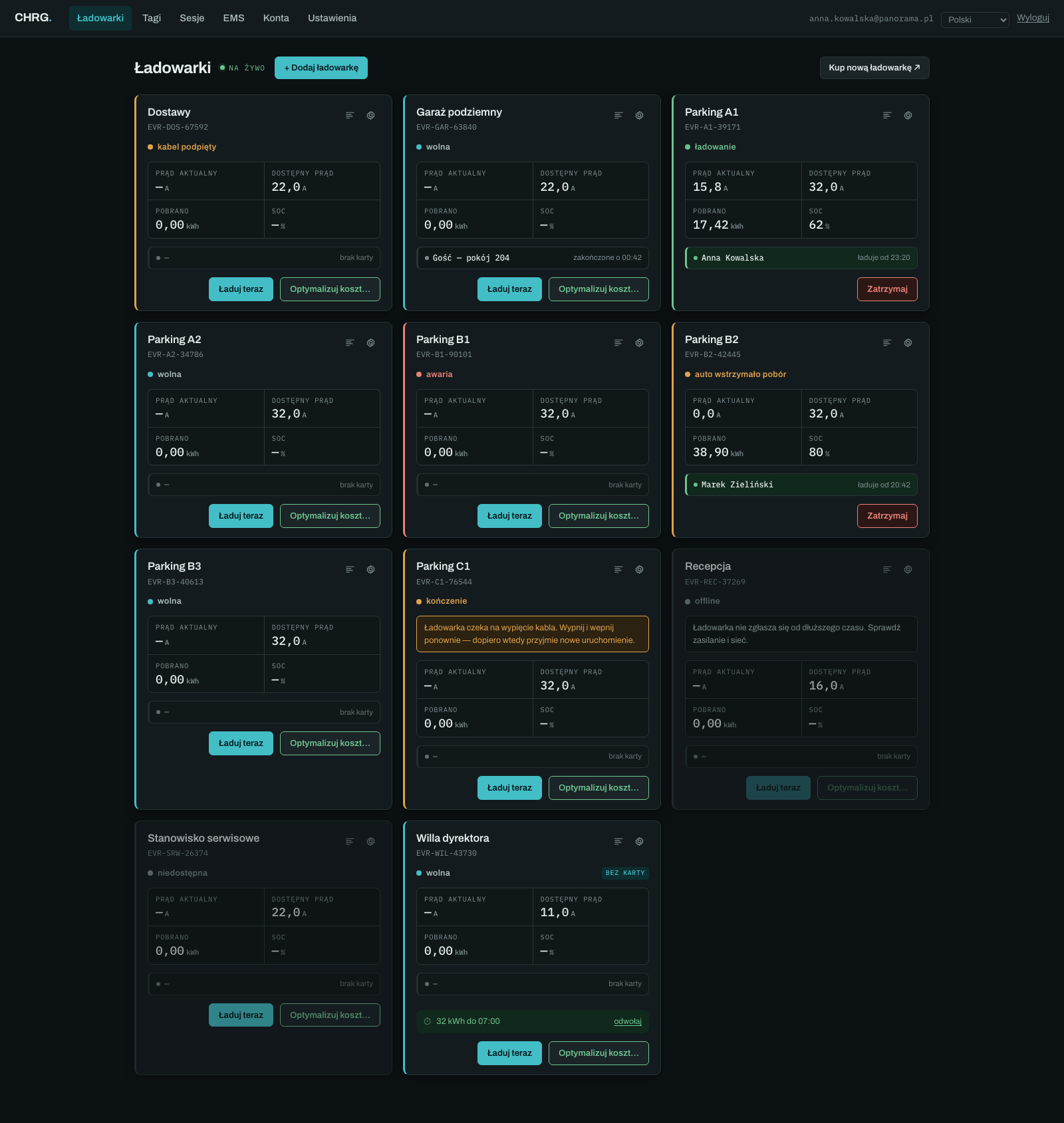
  • The Chargers screen: every device has a tile with its state, current and the card that is charging. It refreshes itself.
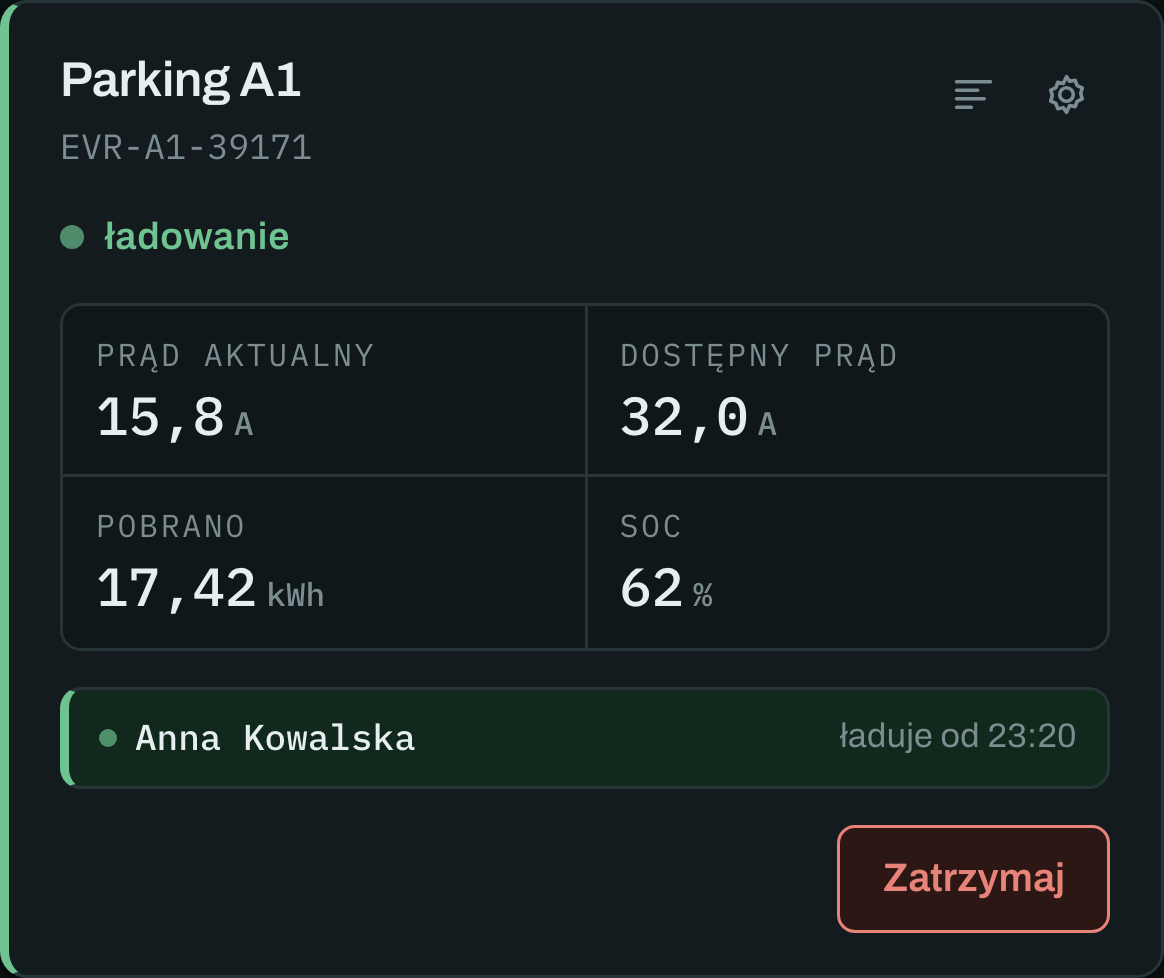
  • A tile during a session: actual and available current, energy drawn, the car's SOC and who has been charging since when.
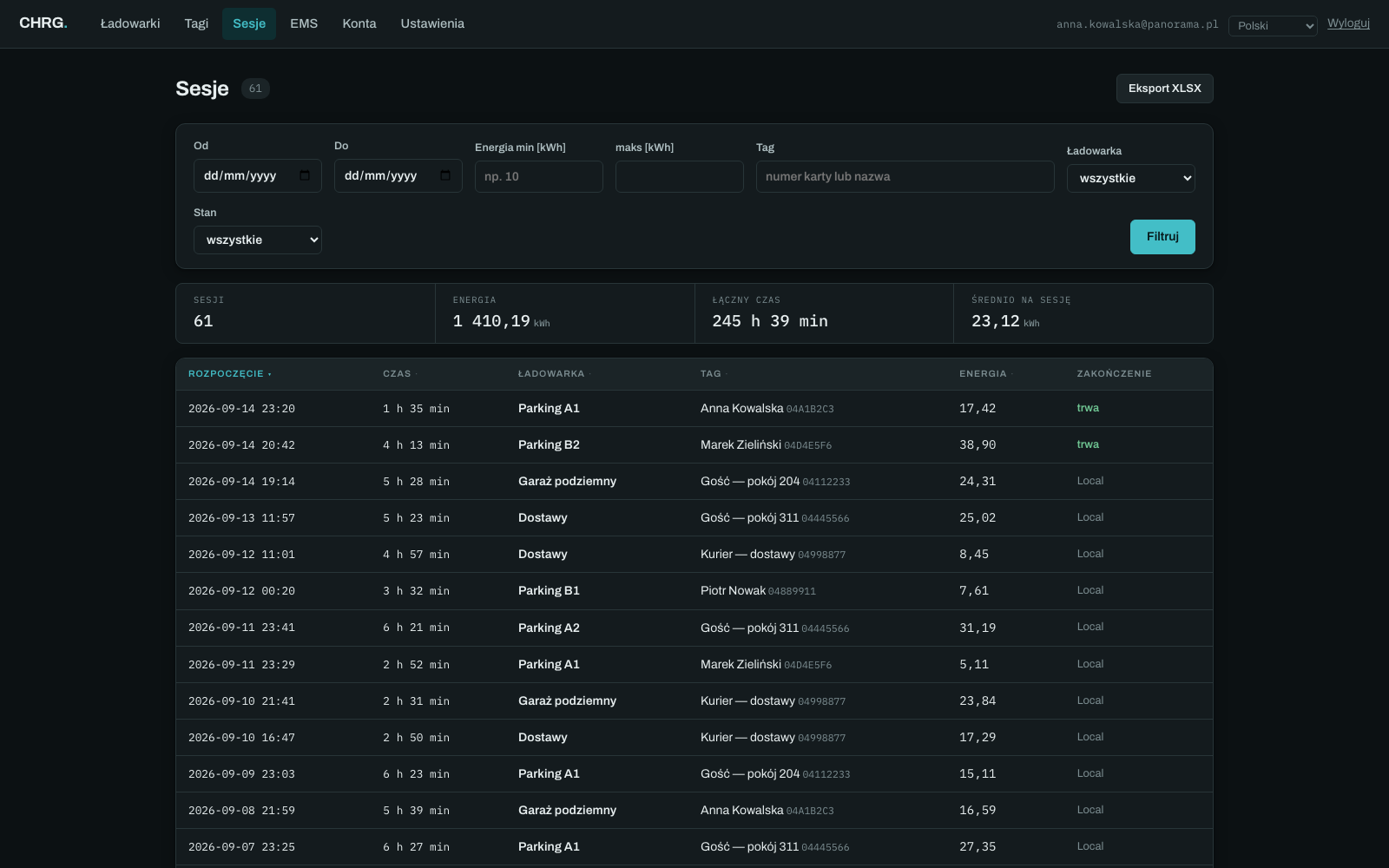
  • Sessions: the full history with filters and a summary; the XLSX export gives exactly what is on screen.
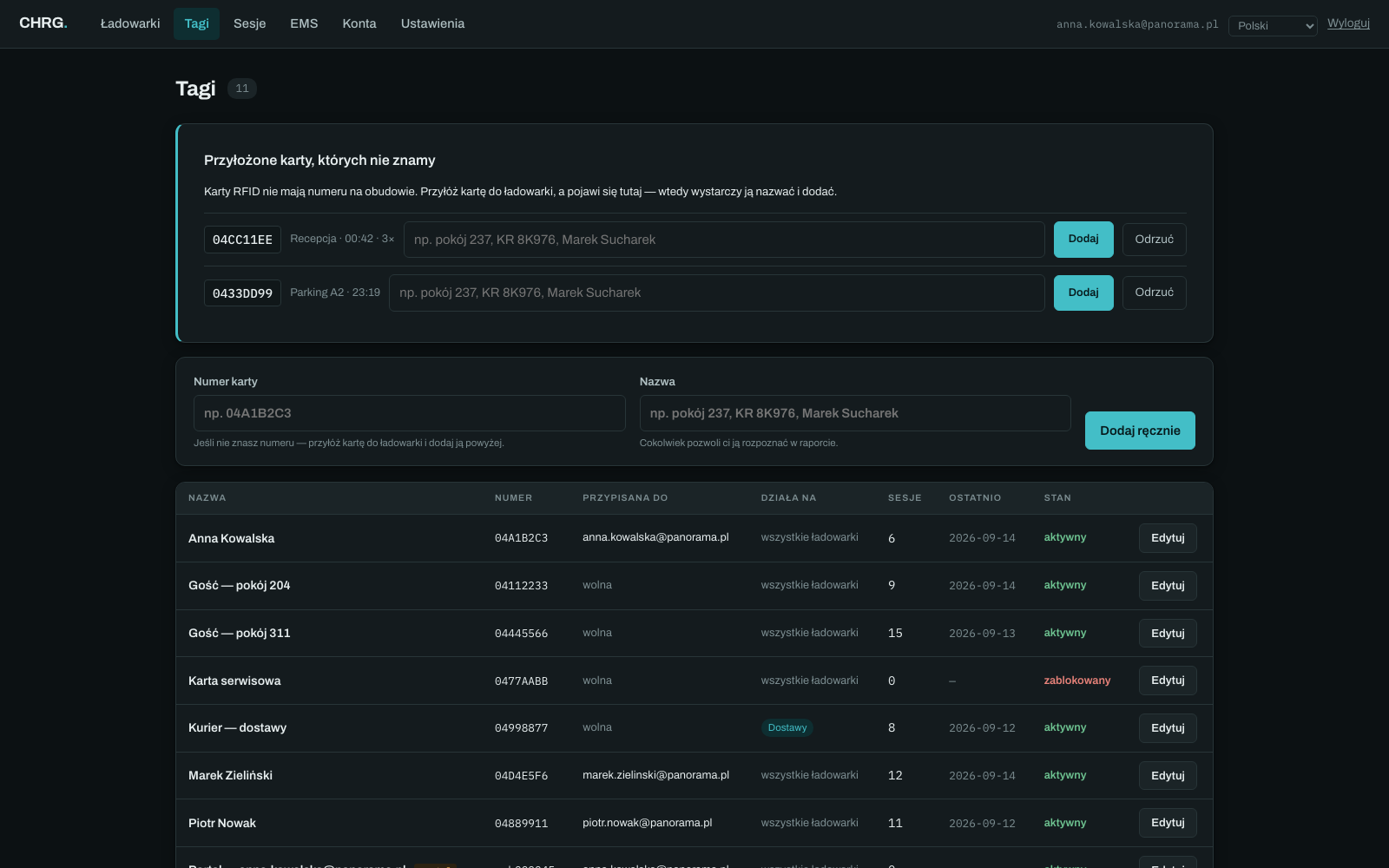
  • Tags: an unknown card that was tapped appears at the top — you give it a name and a charger scope.
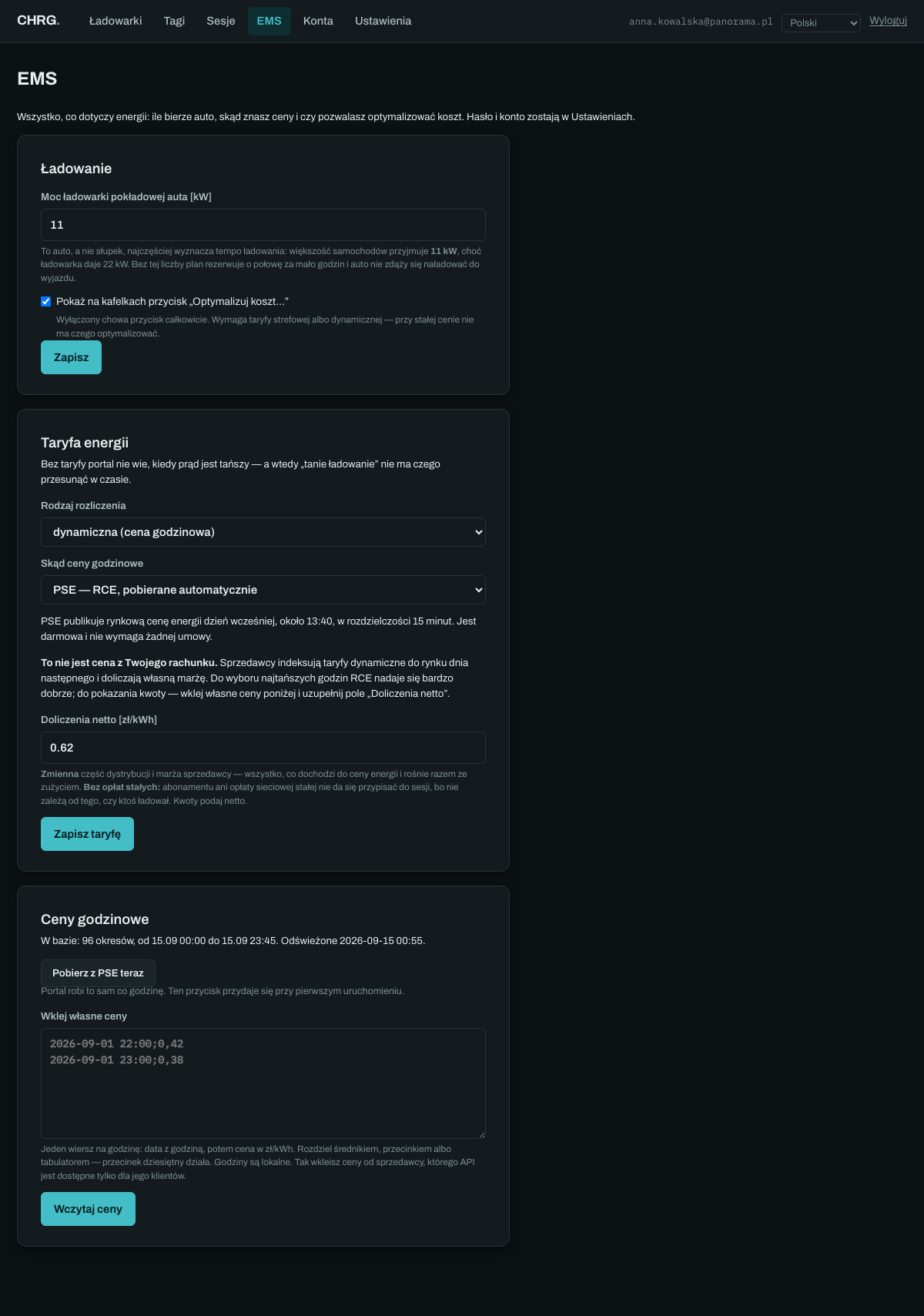
  • EMS: on-board charger power, tariff type and hourly prices — pulled from PSE for a dynamic tariff.
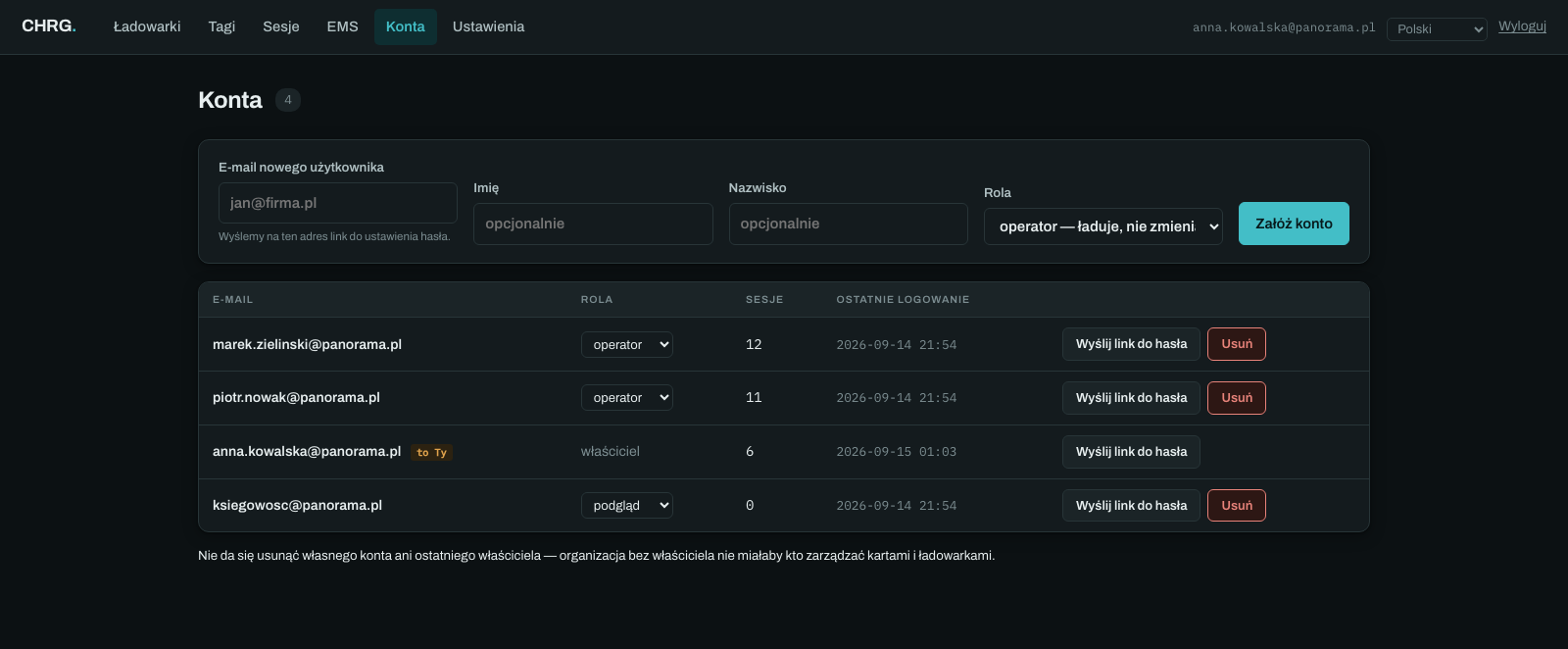
  • Accounts: three roles — owner, operator, viewer. Passwords are set by the user from a one-time link.
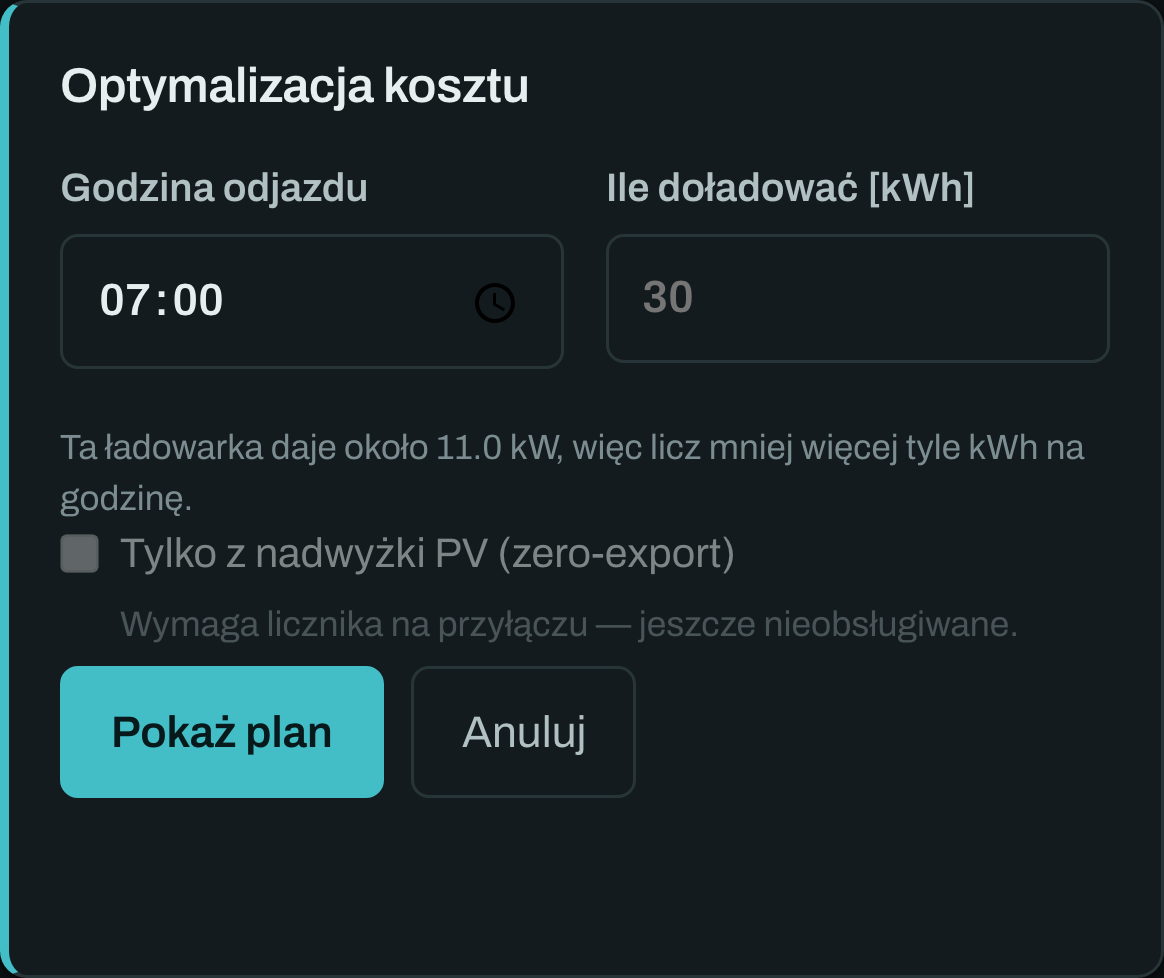
  • Cost optimisation: you enter the departure time and how many kWh to add.
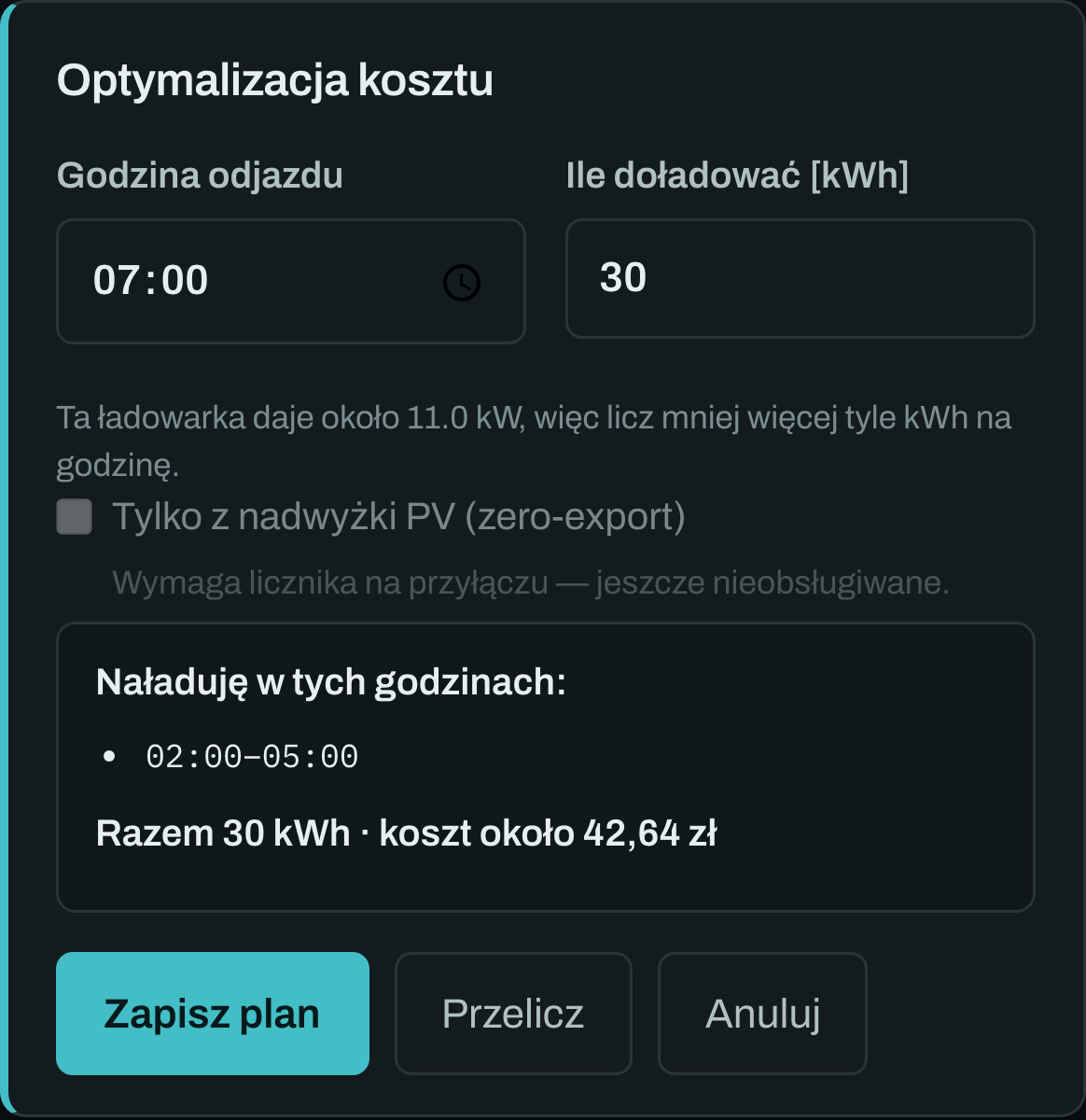
  • The plan before saving: the cheapest hours and the cost — here 30 kWh for about PLN 42.64. The amount comes from real RCE market prices published by PSE, not sample figures.

User guide

Step by step, from first sign-in to billing. The same document you receive with your account.

  1. 01

    First sign-in

    You sign in with your e-mail address and a password. The Panel runs at chrg-app.com — nothing to install, a browser is enough.

    We do not give you a password. After the account is created you receive an e-mail with a link where you set it yourself. The link is single-use and valid for 48 hours. Nobody — including us — knows your password.

    If the password slips your mind, use “Forgot password” under the form. A new single-use link goes to the account address; the old password keeps working until you set a new one.

    The language switch is in the top right corner, also before signing in. The choice is saved on the account. Polish, English and Ukrainian are available.

  2. 02

    The Chargers screen

    This is the screen you will spend most time on. Every charger has its own tile. The LIVE dot next to the heading means the page refreshes itself — a change in the hardware appears within a second of the charger reporting it.

    A tile answers three questions at once: what the hardware is doing, how much current is flowing and who is charging.

    • actual current — what is really flowing right now,
    • available current — the upper limit you set, or the one the hardware imposes,
    • drawn — the energy of this session,
    • SOC — the car's state of charge, if the car reports it. Not all do.

    The strip at the bottom of the tile always has something to show: the card of the running session, a card accepted a moment ago, a rejected card, or the card from the last charge.

    The colour of the left edge and the label tell the state: charging, free, cable plugged, waiting for the car, car paused, finishing, fault, offline. On a fault the tile adds what to do about it.

  3. 03

    Adding a charger

    The “+ Add charger” button above the tiles. You enter a name (any — it is what appears in reports), the ChargeBox ID copied from the charger and the maximum current. If you leave the field empty, the Panel generates an identifier that you then enter in the charger.

    You also choose the connection type:

    • wss:// — encrypted, recommended, default,
    • ws:// — unencrypted, only for hardware that cannot do TLS.

    Over an unencrypted connection the charger's password travels the internet in the clear, so choose it only when your charger's manual leaves no other option. This setting cannot be changed later — to switch, you delete the charger and add it again. The session history stays.

    After adding, the Panel shows the address, login and password to enter in the charger's configuration. The password is shown this one time; later it can only be regenerated.

  4. 04

    Starting and stopping a charge

    A charge starts in one of three ways.

    With a card at the charger. You tap the card and plug in the cable. If the card is on the list and is allowed on this charger, the session starts.

    With the “Charge now” button. The Panel sends a start command to the charger and, for three minutes, treats the next session on that connector as yours. The session lands on the account of the person who pressed the button.

    By itself, when the cable is plugged in. If you enable “Charge without a card” in the tile settings, the Panel sends the start automatically as soon as the charger reports a plugged cable. For a home or a garage — nobody has to tap or click anything.

    You stop a session with the red Stop.

    Remote start has to be supported by the charger itself. Most hardware can; if yours cannot, the card works as usual.

  5. 05

    Current limit

    The cog icon on the tile opens the charger settings. The “Current limit” field sets the upper bound — useful when the connection cannot carry all chargers at once. An empty field removes the limit from the charger itself, not only from the Panel.

    • Below 6 A charging is suspended. That is how the standard works — it is not possible to charge more slowly.
    • The charger may refuse. Not all hardware supports charging profiles. The Panel reads the reply and will not save a limit the device did not accept.
  6. 06

    RFID cards

    The Tags tab. RFID cards have no number printed on them, so you tap the card on any charger — it appears at the top of the page, under “Tapped cards we do not know”. You type a name and click Add. The name is up to you and it is what appears in reports: “room 204”, “KR 8K976”, the driver's name.

    Charger scope. A card can be limited to selected chargers: a courier's card works only at the delivery bay, a hotel guest's card in the car park but not in the staff garage. No selection means all chargers of the organisation, not none.

    Assignment, blocking, expiry. A card can be assigned to an account or left free — a free card works the same, the only difference is who sees its sessions. Blocking invalidates a card immediately without deleting its history. An expiry date is handy for guest cards.

  7. 07

    Accounts and permissions

    The Accounts tab. Three roles, divided by task rather than by seniority — whoever charges sees their own; whoever settles sees everything.

    • Owner — everything: sessions, start and stop, current limit, RFID cards, chargers, accounts, tariffs, EMS.
    • Operator — start, stop and current limit; sees and exports only their own sessions.
    • Viewer — all sessions and export, with no right to start a charge. The role for accounting.

    When creating an account you enter an e-mail address — the link to set a password goes there. Passwords are never displayed or sent. You change your own password in Settings: current, then the new one twice, minimum ten characters.

  8. 08

    Sessions and billing

    The Sessions tab. The full history with filters: date range, energy used, card, charger, state. Above the table sits a summary of what you have just filtered — number of sessions, total energy, total time and the average per session.

    XLSX export gives exactly what is visible after filtering. This is the route to billing an employee, a guest or a tenant: filter by card and month, export, invoice.

    A running session shows running in the last column instead of an end reason.

  9. 09

    EMS — tariff and prices

    The EMS tab. Everything about energy sits here: how much the car takes, where the prices come from and whether you allow cost optimisation.

    The car's on-board charger power. 11 kW by default, and that is usually right — it is the car, not the pedestal, that most often sets the pace. Without this number the plan reserves half the hours it needs and the car is not charged by departure.

    • flat price — one amount at any time of day,
    • time-of-use (G12, G12w) — two zones, hours entered from your contract,
    • dynamic — an hourly market price.

    With a dynamic tariff the prices are pulled automatically from PSE — the RCE market price, published the day before at about 13:40, in 15-minute resolution, free and without a contract. You can also paste your own prices.

    RCE is not the price on your bill. Suppliers index dynamic tariffs to the day-ahead market and add their margin and the variable part of distribution. For picking the cheapest hours RCE is very good; to show an amount, fill in the “Net surcharges” field.

  10. 10

    Cost optimisation

    This is the feature the EMS was built for. On the tile of a free charger you click “Optimise cost…” and enter two things: when you leave and how many kWh to add. The Panel picks the cheapest hours from the price curve and shows the result before anything is saved — in the example, 30 kWh by 7:00 falls on 02:00–05:00, at about PLN 42.64.

    • The deadline beats the price. A plan that saved a few złoty and did not charge the car by 7:00 is worse than no plan. When time runs short, the Panel takes all remaining hours, expensive ones included, and says so.
    • Earlier wins a tie. A margin before the deadline is free and comes in handy when the charger happens to be offline.
    • The plan is recomputed, not stored. The Panel keeps the intent (“30 kWh by 7:00”), not a list of hours. Prices change and cars charge slower than assumed — a stored schedule would be stale by then.

    The button appears only when you enable it in EMS and have a time-of-use or dynamic tariff. With a flat price there is nothing to shift in time.

  11. 11

    The Panel on a phone

    The Panel is responsive and can be installed on the home screen like an app — no store, no download. Android: an “Install” bar appears on first visit. iPhone: Share → Add to Home Screen.

    An installed Panel opens without the browser bar and has its own icon. When the phone loses signal you see a “No connection” screen instead of a browser error — a charge already started carries on, because the charger works regardless of your signal.

  12. 12

    What is not there yet

    So that there are no surprises:

    • Charging from PV surplus only needs a meter at the connection point — the field is visible but inactive.
    • Session cost is computed in the plan preview; the sessions table holds energy, and you add cost at billing time.
    • Notifications about a finished charge or a fault are not yet sent to the customer.

    Everything above is described as it works today. If something is missing from your Panel, write to us — some functions are switched on per account.